
Screenshots capture the essential information of apps, websites, presentations, and digital processes. When using static images, they often convey important information, but without the visual movement. That’s where AI video creation comes into play, turning those visuals into captivating clips effortlessly. Pippit automates the creation of screenshots to video with smart generation, flexible editing, and easy exporting. This guide covers how to select screenshots, how to write your prompt, editing tricks, and workflows for producing great videos from screenshots and reference material.
Why Convert Screenshots into AI-Generated Videos?
Natural movement and smooth transitions make static screenshots more engaging. Motion draws the viewer’s attention to key interface features and details. The animation typically generates more viewer engagement on websites and social media. Movement also helps to promote understanding by providing information in a logical visual progression rather than just images. Automation saves a huge amount of editing time when compared to standard animation software. AI video generator technology transforms existing screenshots into valuable marketing, educational, onboarding, and presentation tools. Pippit helps accelerate this change, without compromising on creative workflows or visual quality.
Choosing the Right Screenshots for Better AI Video Results
The better the film, the better the video. High-resolution screenshots capture the finer details when the animation and editing are done. Smoother visual continuity between scenes with consistent colours, layouts and interface styles. Logical screenshot sequencing is used for better storytelling and to avoid confusing screenshots. Cleaner visual presentations result from removing unnecessary notifications, toolbars or clutter. All screenshots should be used for education, promotion or instruction. Results are further enhanced with clear prompts to guide movement. Taking screenshots prior to upload minimizes revisions and allows Pippit to work through visual references efficiently using supported models such as Seedance 2.5 and maintain overall scene consistency.
Writing Effective Prompts to Animate Screenshots Naturally
Clear directions for bringing static images to life. Explain the camera movements that are preferred, such as zooming, panning, or slow tracking effects. Determine the main visual element and keep the viewer’s attention on it. Describe transition style between scenes to help the story flow. Talk about the lighting, the way it looks, and the preferred mood. Add animation instructions such as intensity of movement, how the object moves, and pacing. Specify suitable video duration together with the required aspect ratio. As it regenerates over time, the quality of the output improves, and unwanted visual inconsistencies in production diminish.
Steps to Transform Screenshots Into Engaging Clips Using AI Video Generator
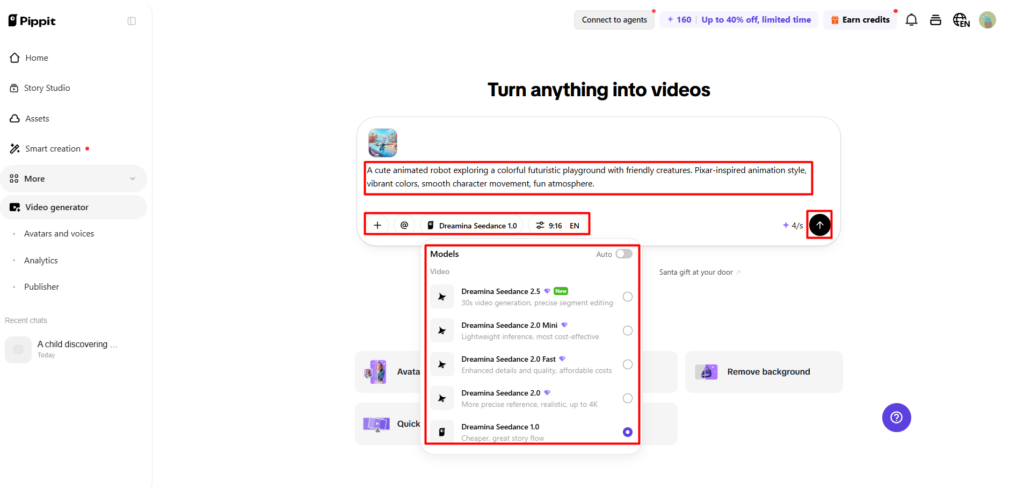
Step 1: Prepare Screenshot-Based Videos
- “Sign up” for Pippit using your Google, TikTok, or Facebook account.
- Open the “More” tab and access “Video generator”.
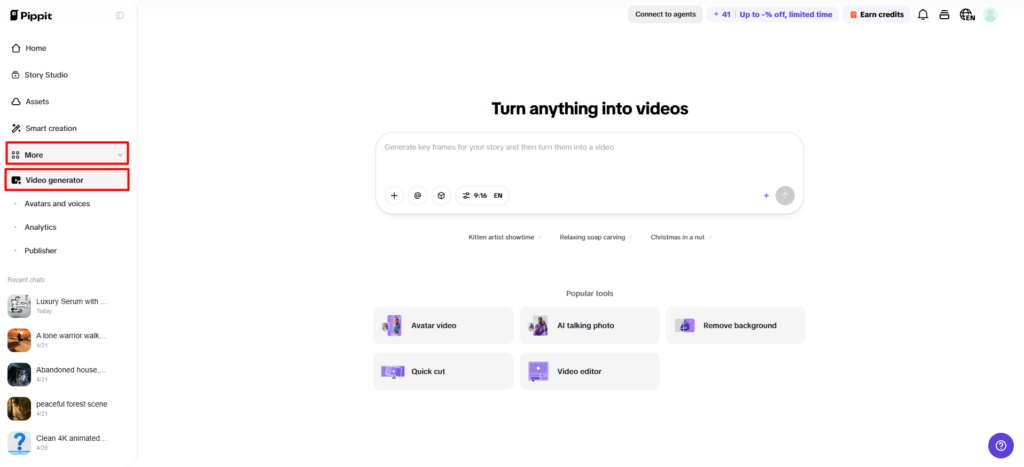
- Select an AI model such as Dreamina Seedance 1.0, Dreamina Seedance 2.0, Dreamina Seedance 2.0 Fast, Dreamina Seedance 2.0 Mini, or Dreamina Seedance 2.5.
- Enter a detailed prompt explaining how you want your screenshots transformed.
- Select video length, language, subtitles, and aspect ratio.
- Click “+” to upload screenshots, images, or videos from your device, phone, Dropbox, or a link. You can also select assets if you don’t have reference media.
- Click “Generate”.
Step 2: Convert Screenshots Into Videos
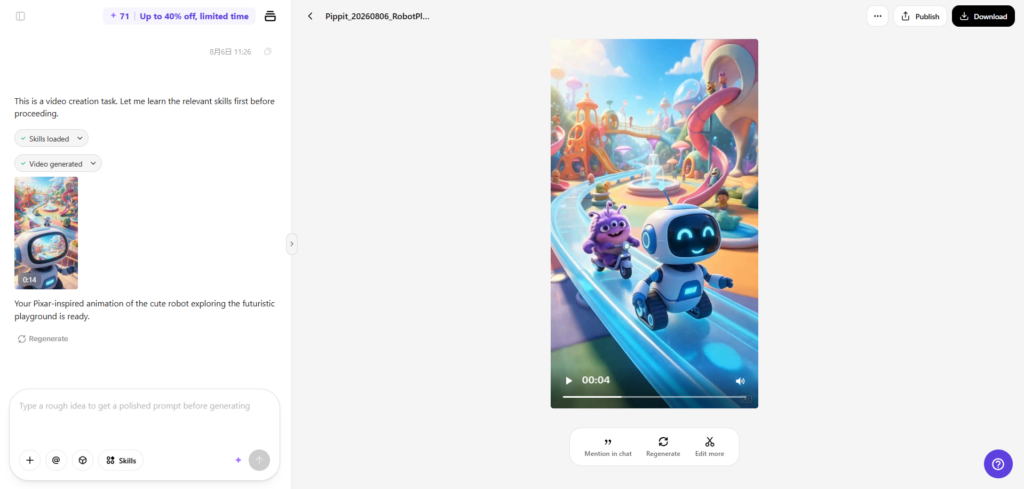
- After clicking “Generate”, Pippit’s AI video generator creates a video using your prompt and uploaded media.
- The AI manages transitions, pacing, captions, avatars, voice, lyrics, and visual enhancements.
- Review the generated draft.
Step 3: Edit and Save the Final Clip
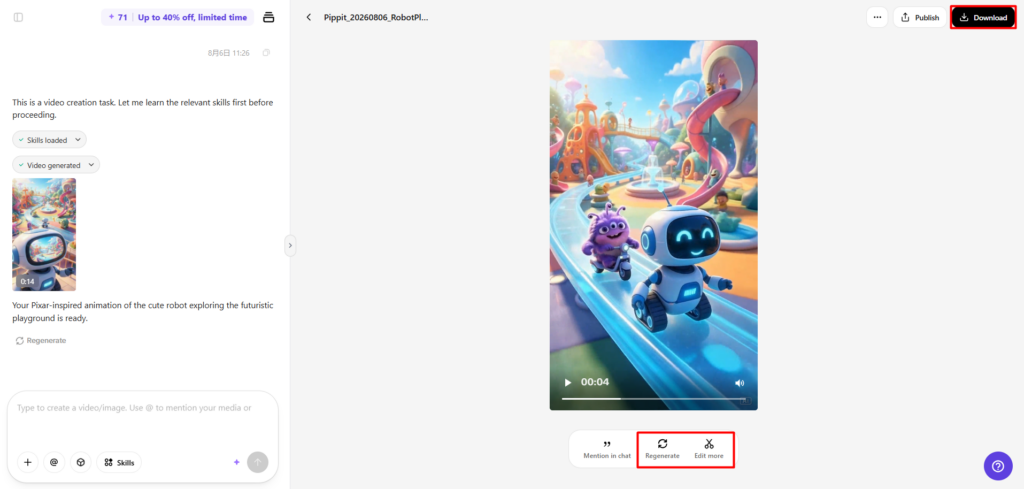
- Click the “Download” tab to save the video, select “Regenerate” for another version, or use “Edit more” for customization.
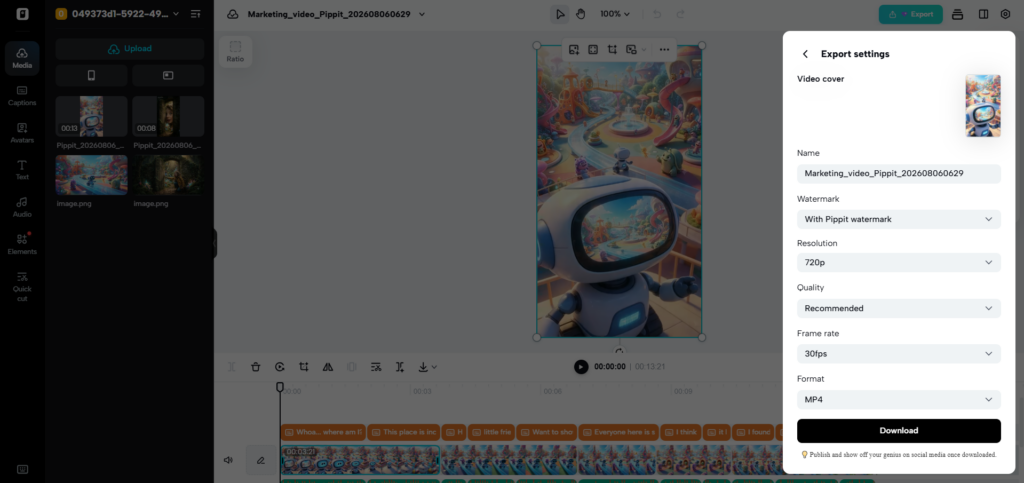
- Adjust captions, text, size, color, alignment, filters, and effects.
- Add music, remove backgrounds, and refine visuals.
- Click “Export”.
- Choose “Publish” for TikTok, Instagram, or Facebook, or click “Download” to save your video with preferred format, resolution, frame rate, and quality.
Pippit Features That Simplify Screenshot-to-Video Creation
Pippit has several features that make it easy to create and fine-tune screen animations.
- AI image-to-video animation brings life to motionless screenshots.
- There are several different Dreamina models, each designed to provide a variety of visual styles and creative goals.
- Prompt-based editing is a method of editing scenes with simple written prompts.
- Built-in editing features enhance captions, filters, text, colors, and visual effects.
- Flexible uploads allow for screenshots to be uploaded from a variety of supported storage sources.
- Direct exporting is used for handy sharing with the most important social media.
Enhancing Screenshot Videos with AI-Powered Visual Elements
Professional videos rely on proper visual enhancements, rather than too many effects. Smooth camera movement naturally leads to the focus on relevant UI elements. Dynamic transitions are used to transition between screenshots (no distracting visual interruptions). Automatic caption generation enhances accessibility and comprehension for viewers on various platforms. Background music is carefully chosen to enhance emotional impact and support the pace of the visuals. Filters and effects help to make things consistent between scenes, but not too much. AI-generated voices and avatars also enhance presentations when narration or character-based communication is beneficial to the overall presentation.
Best Practices for Creating Professional Screenshot-Based Videos
Visually continuity enhances the viewers’ comprehension from start to finish. When explaining a process, a tutorial, or any product demonstration, put the screenshots in order. Keep your focus on one idea rather than putting unrelated ideas together. Choose your movements wisely, as too much animation makes it hard to read and diverts attention. Always check the drafts that are generated before exporting final versions. Often, small editing changes can enhance pacing, transitions, captions, and the overall quality of the presentation. All these adjustments are handled easily in Pippit’s editing workspace, and creative flexibility is maintained throughout production.
Future Possibilities for AI Screenshot-to-Video Technology
In the future, with better visual recognition, the screenshots will be better interpreted. AI systems will automatically get a better understanding of interface relationships and important content. The generation of motion will be more natural, and the behavior of objects will remain realistic. Larger collections of screenshots will create stronger visual narratives with multi-image sequencing. Better prompt interpretation will be able to interpret the written instructions into accurate creative results. More automation will make professional content creation easier and reduce the amount of manual editing needed for educational content, software demonstrations, marketing campaigns, presentations, and digital stories.
Conclusion
Screenshots are useful for containing information that should be more visually presented. Turning images into videos makes things easier to communicate and more engaging. When it comes to screenshots, prompt writing and careful refinement always lead to stronger results. Checking the content generated also boosts the overall quality. With intelligent image animation, flexible editing, streamlined workflows, and convenient publishing features, Pippit makes professional video production easier, faster, and more efficient with screenshots in a wide range of creative projects.